A smart touch board (interactive flat panel) can completely upgrade your classroom or meeting room—but it can also drain your budget if you’re not careful. The good news: you don’t need the most expensive model to get real value. With a clear checklist and a few smart compromises, you can choose a board that fits both your needs and your budget.
This guide walks you through how to choose a smart touch board on a budget, focusing on what to prioritise, what to downgrade, and what to skip entirely.
1. Start with Your “Non‑Negotiables”
Before you look at brands or prices, list how you’ll actually use the board in daily life. This stops you from paying for features you’ll never touch.
Ask yourself:
- Is it mainly for teaching, training, or presentations/meetings?
- How many people need to see the screen clearly?
- Will you use it every day, or only a few times a week?
- Do you really need advanced video conferencing, or just screen sharing and whiteboarding?
From this, define 3–5 non‑negotiables. For example:
- Clear text from the back of the room
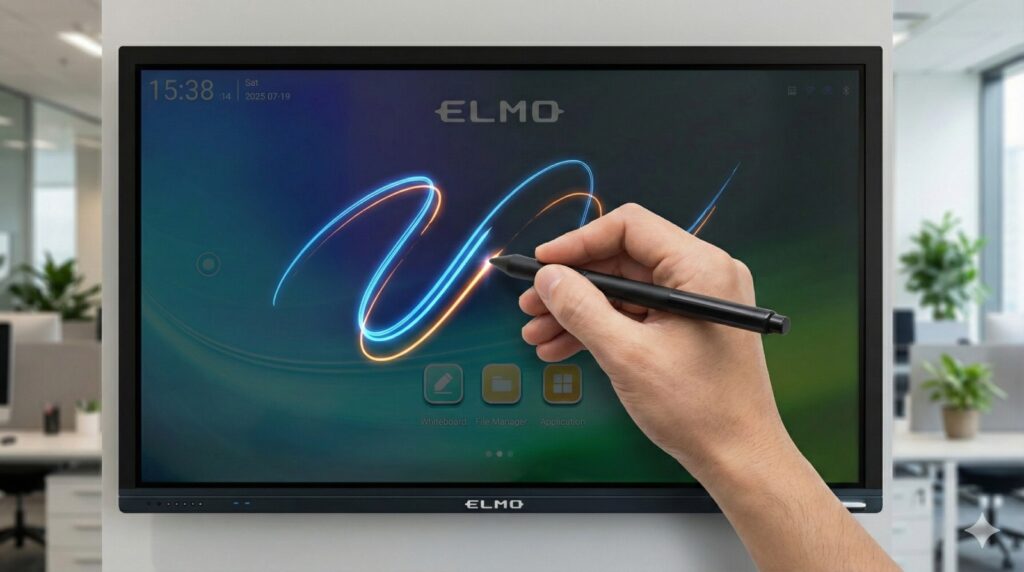
- Smooth writing with a pen
- Easy screen sharing from teacher/employee laptops
- Basic annotation tools
Everything else is “nice to have”—and that’s where you can save money.
2. Choose the Right Size (Don’t Overbuy Inches)
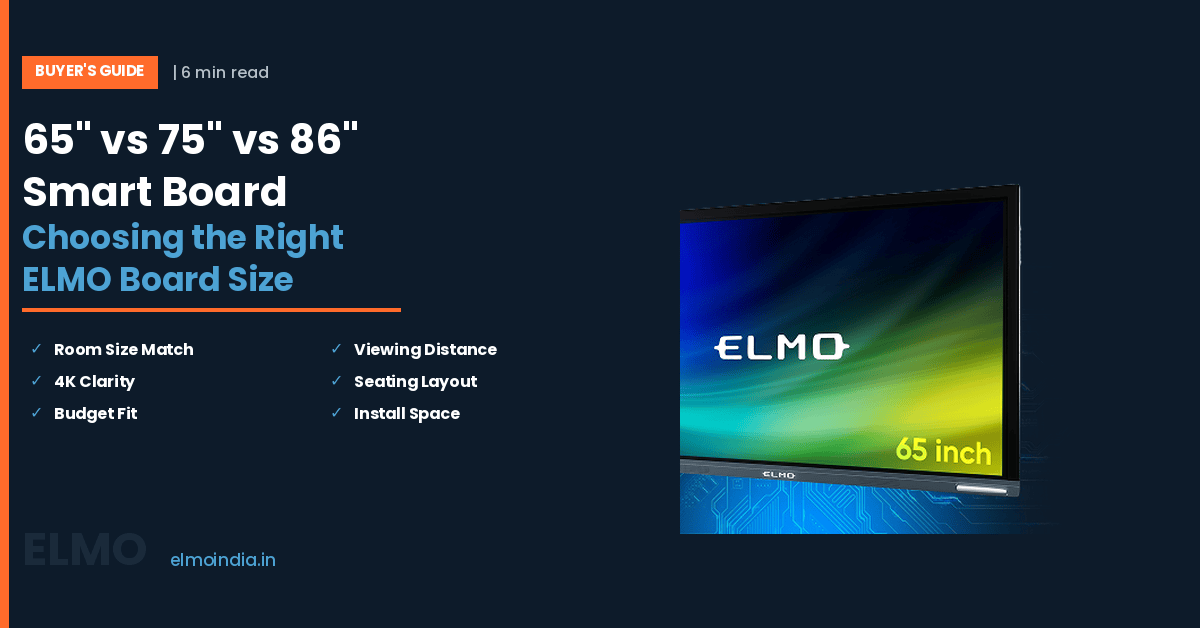
Screen size is one of the biggest price drivers. Many buyers automatically jump to the largest size, but you can often save a lot by going one size down without hurting usability.
Rough guide:
- Small room / up to ~20 seats: 65″ is usually enough
- Medium classroom / meeting room: 75″ is a good balance
- Large hall / boardroom: 86″ or dual displays
If you’re on a tight budget, ask:
- Can you rearrange seating so everyone is closer?
- Can you use a 75″ instead of 86″ without affecting visibility?
Often, that one-step-down decision frees budget for better touch performance, warranty, or software, which has a bigger impact on daily use than pure size.
3. Prioritise Display & Writing Over Fancy Extras
On a budget, focus on two things first:
- Can everyone see clearly?
- Does writing feel natural?
What you should insist on:
- 4K resolution – Essential for crisp text and diagrams.
- Decent brightness and anti‑glare – So the screen is usable with lights on.
- Low‑lag writing – Pen strokes should appear instantly.
- Good touch accuracy – No jumping lines or missed taps.
Where you can save:
- Ultra‑high brightness meant for very bright auditoriums.
- Advanced colour calibration features aimed at designers.
- Super‑high touch points (e.g., 40+). For most classrooms/meeting rooms, 10–20 touch points is enough.
If the choice is between a very big but average panel and a slightly smaller but sharp, comfortable, and smooth‑writing panel, the second one wins every time—especially on a budget.
4. Be Smart About Software: Use What You Already Have
Many high‑end boards are bundled with expensive software ecosystems. You may not need them.
Budget strategy:
- Leverage existing tools
- For schools: Google Workspace, Microsoft 365, your LMS, free whiteboard apps.
- For corporates: Teams, Zoom, Google Meet, Miro, Microsoft Whiteboard, etc.
- Look for boards with solid built‑in whiteboarding but avoid paying extra for content libraries you’ll never use.
- Prefer lifetime/long‑term licences over recurring high subscription costs.
Ask vendors directly:
- “What comes included in the base price?”
- “Which features require annual fees?”
- “Can we use our existing accounts (Google/Microsoft/Zoom) instead of buying your add‑ons?”
This alone can save a significant amount over 3–5 years.
5. Get the Connectivity You Need, Skip the Overkill
You don’t need every possible port and wireless protocol; you just need the right ones.
On a budget, make sure you have:
- At least 2 HDMI inputs
- Multiple USB ports for pen drives and peripherals
- LAN (Ethernet) for stable network connection
- Basic wireless casting (from Windows, Android; AirPlay support is a bonus)
You can often skip or downgrade:
- Very specialised AV ports you’ll never use
- Built‑in 4K cameras and beamforming mics if you already have (or plan to buy) separate webcam/mic setups
- Complex room control systems that are overkill for a simple classroom or meeting room
Think of the board as a hub, but keep the hub simple and practical.
6. Consider Android‑Only First, Add Windows Later If Needed
Boards that come with both Android and a powerful Windows OPS PC are great—but also more expensive.
To save money:
- Start with a good Android‑only board that supports the apps you need (browser, office, whiteboard, casting, conferencing).
- If, later, you realise you need heavy Windows apps (specialised teaching software, desktop applications, etc.), you can add an OPS module when budget allows.
This “start lean, upgrade later” approach spreads out costs instead of paying everything upfront.
7. Don’t Compromise on Warranty and Service
A cheap board with poor support can become very expensive when something breaks.
Even on a tight budget, you should:
- Aim for at least 3 years warranty (5 years is ideal for schools).
- Confirm on‑site service availability in your city/region.
- Ask for average response time and if spare parts are locally stocked.
If the choice is:
- Option A: Slightly cheaper board, 1‑year warranty, weak service.
- Option B: Slightly costlier board, 3–5‑year warranty, strong service network.
Option B is usually the smarter budget decision over the life of the product.
8. Use Bundles, Volume Deals, and Phased Rollouts
There are simple negotiation and planning tricks that can protect your budget:
- Bundle smartly
- Ask for a combined price for board + wall mount/stand + basic training.
- Avoid unnecessary extras in the bundle (premium trolleys, high-end cameras) unless you really need them.
- Volume discounts
- If you need multiple boards, ask vendors for tiered pricing (for 3, 5, 10+ units).
- Even if you’re buying in phases, make your total plan clear and negotiate based on that.
- Phased rollout
- Start with 1–2 rooms as pilot installations, learn what features you actually use, then standardise.
- This prevents buying the wrong spec in bulk.
9. Involve Real Users Before Finalising
The most budget‑friendly board is the one that people actually use fully.
Before deciding:
- Arrange live demos from 2–3 shortlisted vendors.
- Let teachers, trainers, or frequent presenters try writing, switching inputs, and sharing their screens.
- Ask them:
- “Is the writing smooth enough?”
- “Can you find tools easily?”
- “Would you be comfortable using this daily?”
Sometimes, the “cheaper on paper” model turns out to be expensive in practice because nobody likes using it. A short hands‑on test can prevent that mistake.
Conclusion
Choosing a smart touch board on a budget is not about buying the cheapest model you can find—it’s about spending wisely on what truly matters and cutting what doesn’t.